| backgrounds | ||
| components | ||
| LICENSE | ||
| Main.qml | ||
| metadata.desktop | ||
| preview.png | ||
| README.md | ||
| theme.conf | ||


🌲 Sequoia theme for SDDM



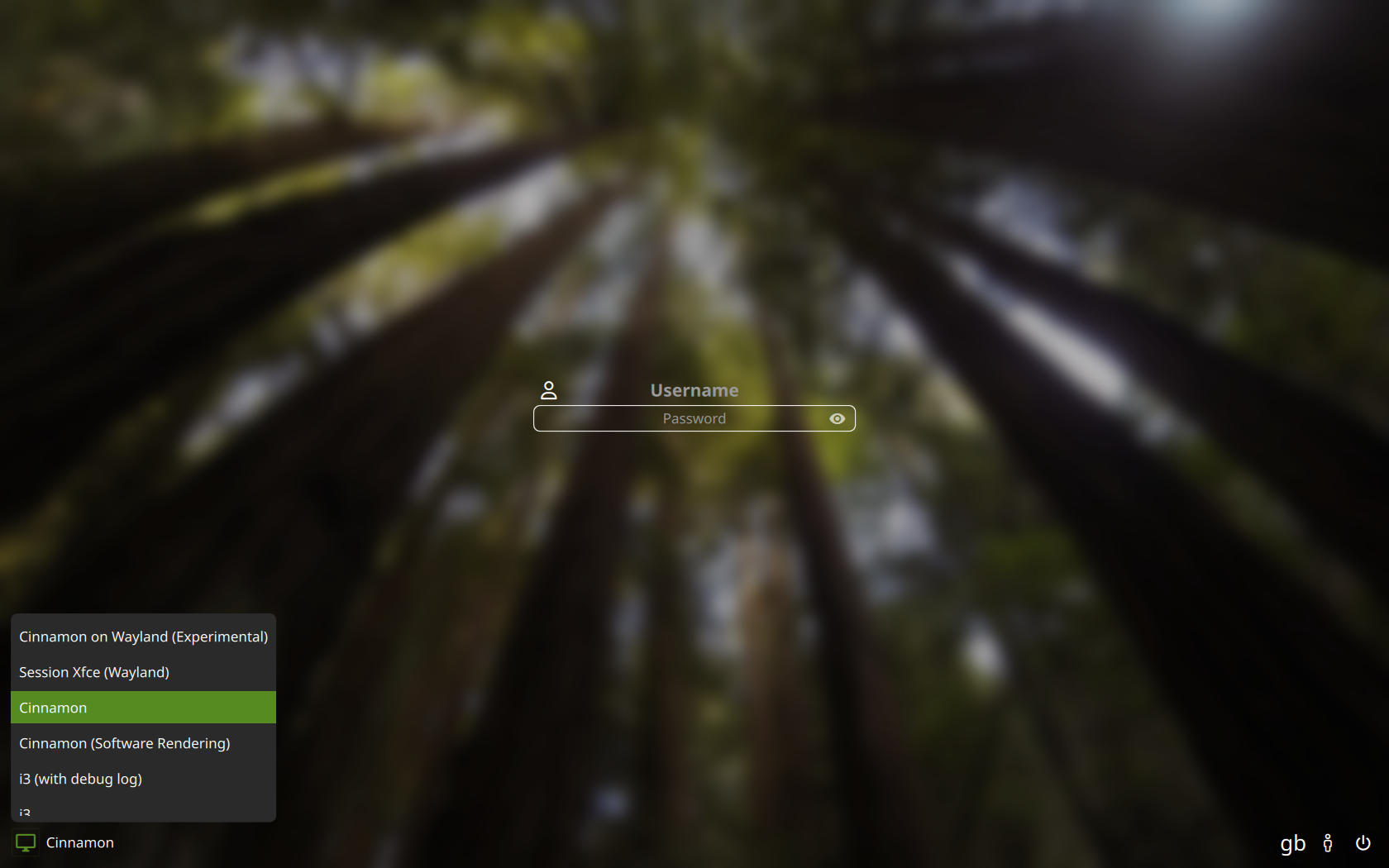
Sequoia is a modern eye-candy theme for SDDM, making use of Nerd Fonts for its icons.
Written from scratch, it is primarily made for standalone SDDM, aiming to be customisable with accessibility options.
Dependencies
Note
Package names used below are for Arch Linux, packages may vary for your distro
- sddm
- a Nerd Font installed system-wide >= v3.0
- qt6 >= 6.6
- qt6-declarative
- qt6-5compat
Manual Installation
Install by cloning
(recommended)
1- Clone this repository and delete the .git folder
$ git clone https://codeberg.org/minMelody/sddm-sequoia.git ~/sequoia && rm -rf ~/sequoia/.git
2- Move the resulting directory to your theme directory
$ sudo mv ~/sequoia /usr/share/sddm/themes/
Install by downloading an archive on pling
1- Go to the theme's page on pling.com and download a release from the Files tab
2- Extract the tarball to your SDDM theme directory (change the archive path if needed):
$ sudo tar -xzvf ~/sequoia.tar.gz -C /usr/share/sddm/themes
Click on an installation method above for steps 1 -> 2
3- Edit your SDDM config file, under [Theme] change Current= to Current=sequoia
It should look like this:
[Theme]
Current=sequoia
Important
Make sure to match the theme name with the theme's directory
On screen keyboard
If you wish to use the virtual keyboard, install qt6-virtualkeyboard
then edit once again your SDDM config file, under [General] set InputMethod to qtvirtualkeyboard:
[General]
InputMethod=qtvirtualkeyboard
see also: the Arch wiki guide
Testing
You can easily try out themes without changing your SDDM config or repeatedly logging out using this command:
$ env -i HOME=$HOME DISPLAY=$DISPLAY XAUTHORITY=$XAUTHORITY sddm-greeter-qt6 --test-mode --theme /path/to/your/theme
It's quite the time-saver when configuring your theme.conf file.
Support
If you want to show support by buying me a coffee or send a tip feel free to visit my ko-fi page ❤️
