
91 lines
3.1 KiB
Markdown
91 lines
3.1 KiB
Markdown
<h2 align='center'>🌲 Sequoia theme for SDDM</h2>
|
|
|
|
<div align='center'>
|
|
<a href='https://www.pling.com/p/2191680/'><img height='36' src='https://www.pling.com/theme/react/assets/img/logo-pling.png' title='Available on Pling' alt='pling.com button'/></a>
|
|
<a href='https://ko-fi.com/Y8Y0473AA' target='_blank'><img height='36' src='https://storage.ko-fi.com/cdn/kofi6.png?v=6' title='Buy Me a Coffee at ko-fi.com' alt='ko-fi.com button' /></a>
|
|
</div>
|
|
|
|

|
|
|
|
|
|
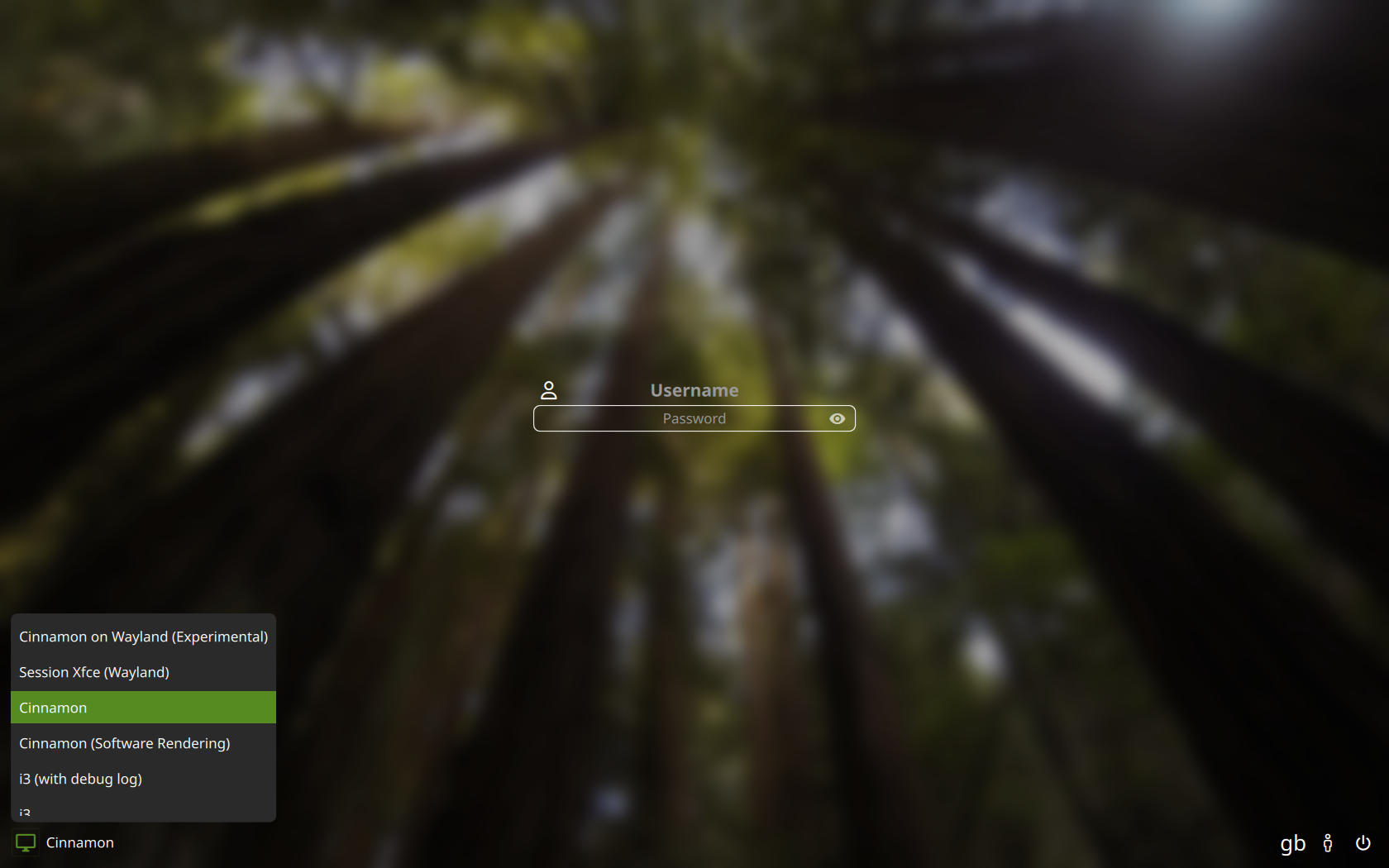
Sequoia is a modern eye-candy theme for SDDM, making use of Nerd Fonts for its icons.
|
|
|
|
Written from scratch, it is primarily made for standalone SDDM, aiming to be customisable with accessibility options.
|
|
|
|
### Dependencies
|
|
|
|
> [!NOTE]
|
|
> Package names used below are for Arch Linux, packages may vary for your distro
|
|
|
|
* sddm
|
|
* a [Nerd Font](https://www.nerdfonts.com/font-downloads) installed system-wide >= v3.0
|
|
* qt6 >= 6.6
|
|
* qt6-declarative
|
|
* qt6-5compat
|
|
|
|
## Manual Installation
|
|
|
|
<details> <summary><h6>Install by cloning</h6> (recommended)</summary>
|
|
|
|
1- Clone this repository and delete the `.git` folder
|
|
```
|
|
$ git clone https://codeberg.org/minMelody/sddm-sequoia.git ~/sequoia && rm -rf ~/sequoia/.git
|
|
```
|
|
|
|
2- Move the resulting directory to your theme directory
|
|
```
|
|
$ sudo mv ~/sequoia /usr/share/sddm/themes/
|
|
```
|
|
</details>
|
|
|
|
<details> <summary><h6>Install by downloading an archive on pling</h6></summary>
|
|
|
|
1- Go to [the theme's page](https://www.pling.com/p/2191680/) on pling.com and download a release from the `Files` tab
|
|
|
|
2- Extract the tarball to your SDDM theme directory *(change the archive path if needed)*:
|
|
```
|
|
$ sudo tar -xzvf ~/sequoia.tar.gz -C /usr/share/sddm/themes
|
|
```
|
|
</details>
|
|
|
|
*Click on an installation method above for steps 1 -> 2*
|
|
|
|
3- Edit your [SDDM config file](https://man.archlinux.org/man/sddm.conf.5), under `[Theme]` change `Current=` to `Current=sequoia`
|
|
|
|
It should look like this:
|
|
|
|
```conf
|
|
[Theme]
|
|
Current=sequoia
|
|
```
|
|
|
|
> [!IMPORTANT]
|
|
> Make sure to match the theme name with the theme's directory
|
|
|
|
### On screen keyboard
|
|
|
|
If you wish to use the virtual keyboard, install [qt6-virtualkeyboard](https://archlinux.org/packages/?name=qt6-virtualkeyboard)
|
|
|
|
then edit once again your SDDM config file, under `[General]` set `InputMethod` to `qtvirtualkeyboard`:
|
|
|
|
```conf
|
|
[General]
|
|
InputMethod=qtvirtualkeyboard
|
|
```
|
|
|
|
see also: [the Arch wiki guide](https://wiki.archlinux.org/title/SDDM#Enable_virtual_keyboard)
|
|
|
|
### Testing
|
|
|
|
You can easily try out themes without changing your SDDM config or repeatedly logging out using this command:
|
|
|
|
```
|
|
$ env -i HOME=$HOME DISPLAY=$DISPLAY XAUTHORITY=$XAUTHORITY sddm-greeter-qt6 --test-mode --theme /path/to/your/theme
|
|
```
|
|
|
|
It's quite the time-saver when configuring your `theme.conf` file.
|
|
|
|
## Support
|
|
|
|
If you want to show support by buying me a coffee or send a tip feel free to visit my ko-fi page ❤️ <br/>
|
|
[](https://ko-fi.com/Y8Y0473AA)
|